2008-11-26

Removing last Exchange 2007 server from your organization

Had to uninstall exchange serve from SBS 2008, as it was the last Exchange server in organization I encountered number of problems trying to uninstall it.

One of those problems are that you cannot uninstall Exchange server while it contains Public Folder Replicas and you can't move them to another server because there is none.

Browsing the web I was finally able to solve this problem, for full artcile just follow the link and read the comments.
Here's summary:

1. You'll have to keep at least one mailbox with administrator rights.
2. Open Power-Shell and enter the following commands:

Get-PublicFolder -Server "\" -Recurse -ResultSize:Unlimited | Remove-PublicFolder -Server -Recurse -ErrorAction:SilentlyContinue

Get-PublicFolder -Server "\Non_Ipm_Subtree" -Recurse -ResultSize:Unlimited | Remove-PublicFolder -Server -Recurse -ErrorAction:SilentlyContinue

3. Remove all mailboxes on your server.
4. Remove Exchange 2007 server from "Programs and Features" in control panel.

Links:
http://blogs.technet.com/asiasupp/archive/2007/06/26/public-folder-replicas-prevent-uninstall-exchange-2007.aspx

Cannot access folder "Access Denied"

In cases when you need to access folder, but get "Access Denied" message even when you're logged on as an Administrator, you'll have to take ownership of that folder.
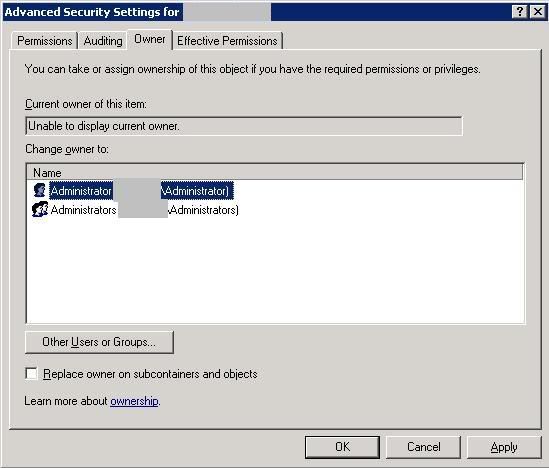
To do this in Windows Server 2003 open folder Properties, select Security tab and click on Advanced button, then hop on Owner tab. Now select user which will be the new owner of this folder and click OK (screenshot).

Links:
http://www.lockergnome.com/windows/2005/10/04/take-ownership-of-a-folder-in-server-2003/

2008-10-28

When viewing shared folder contents users should be able to see only those subfolders they have access to

When you have shares for multiple users, each of whom have permissions to different subfolders in that share, you might want to filter the view that the users would only see those contents which they can access.

To achieve this on Windows Server 2003 you'll need to install Access-based Enumeration.

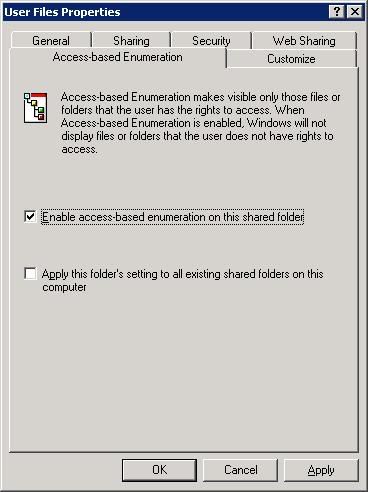
When installed right click on the shared folder, go to the Access-based Enumeration tab and check the Enable access-based enumeration on this shared folder checkbox (screenshot).
Click Ok.

Downloads:
Windows Server 2003 Access-based Enumeration
Documentation

Shares and subfolders permissions

Task:
Share a folder and make some of its subfolders available to one user group and not available to another user group which also has share permissions on the root folder.

The difficulty in this was that if I share "Folder 1" for "user group 1" with full permissions, then this "user group 1" is able to access all of "Folder 1" subfolders. It is because "Folder 1" inherits the "Security" permissions from it's root (in my case it was "Users (DOMAIN\Users)" with Read & Execute, List Folder Contents and Read permissions on "D:").
You need to remove these inheritable permissions.

To do this:
Right click the shared folder "Folder 1" and click on Properties.
Go to Security tab and click on Advanced button.
Clear the Allow inheritable permissions from the parent to propagate to this object... checkbox (screenshot).
At the prompt click Remove to remove inherited permissions (screenshot) and then specify your own.

2008-10-25

Remote Desktop saved Credentials does not work

If you are using Remote Desktop you should be aware that you can save your credentials to be able to connect without entering user name and password each time. But for some reason sometimes it does not work.
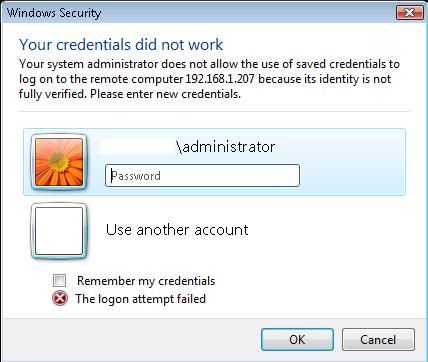
You try to connect with you saved credentials and a logon screen pops up with the message at the bottom that "The logon attempt failed". (screenshot)
This is because you entered wrong credentials first time and they were saved, so you need to delete your credentials, enter them again and choose to remember them.
However I was not able to do that, as many times as I tried to delete my credentials and then enter correct ones and save them, when reloging I always got "The logon attempt failed".
So I had to use hostname instead of IP address, when connecting, to be able to save my correct credentials and then successfully relogon without having to enter my password.

Links:
http://blogs.msdn.com/ts/archive/2007/01/22/vista-remote-desktop-connection-authentication-faq.aspx#_Saved_credentials_do


You might want to try this if above information does not solve your problem:
http://alinconstantin.blogspot.com/2007/08/terminal-service-client-not-using-saved.html