It seems that RDS in server 2012 won't let you create .rdp shortcuts for remote applications.
The easiest workaround I found so far is to login to your RD Web Access via Firefox and click on RemoteApp, firefox then asks if you want to open the file or save it.
Of course we want to save it :) so do just that.
Here you go an .rdp shortcut for your RemoteApp.
Showing posts with label RDP. Show all posts
Showing posts with label RDP. Show all posts

2011-06-06
Double login to Terminal Servers with RD Connection Broker
If your users are frustrated by the double login prompt while attempting to connect to terminal server (2008 R2 in my case) in RD Connection Broker farm you may try few things.
1) Make sure users are entering their credentials on the RDP client and not when they are already connected to the server.
2) Enable Credssp on windows XP SP3
Click Start, click Run, type regedit, and then press ENTER.
In the navigation pane, locate and then click the following registry subkey:
HKEY_LOCAL_MACHINE\SYSTEM\CurrentControlSet\Control\Lsa
In the details pane, right-click Security Packages, and then click Modify.
In the Value data box, type tspkg. Leave any data that is specific to other SSPs, and then click OK.
In the navigation pane, locate and then click the following registry subkey:
HKEY_LOCAL_MACHINE\SYSTEM\CurrentControlSet\Control\SecurityProviders
In the details pane, right-click SecurityProviders, and then click Modify.
In the Value data box, type credssp.dll. Leave any data that is specific to other SSPs, and then click OK.
In the navigation pane, locate and then click the following registry subkey:
HKEY_LOCAL_MACHINE\SYSTEM\CurrentControlSet\Control\Lsa
In the details pane, right-click Security Packages, and then click Modify.
In the Value data box, type tspkg. Leave any data that is specific to other SSPs, and then click OK.
In the navigation pane, locate and then click the following registry subkey:
HKEY_LOCAL_MACHINE\SYSTEM\CurrentControlSet\Control\SecurityProviders
In the details pane, right-click SecurityProviders, and then click Modify.
In the Value data box, type credssp.dll. Leave any data that is specific to other SSPs, and then click OK.
3) Create RDP shortcut and edit it with notepad, add the following lines:
prompt for credentials on client:i:1
enablecredsspsupport:i:1
2011-05-03
Remote Desktop does not work to TMG (ISA) server
If all rules are in place for RDP, but you still can't connect to your TMG (ISA) server, following steps might help you:
This is for Windows Server 2008 R2
Connect to TMG locally and go Administrative Tools -> Remote Desktop Services -> Remote Desktop Session Host Configuration
In connections table right click RDP-Tcp and select Properties then select Network Adapters tab and choose Network Adapter: for which you want to enable RDP.
2009-11-07
Enable Remote Desktop remotely via Group Policy
Have you been in a situation where you need to remotely connect to some workplace and do some administrator stuff, but can not because Remote Desktop is not enabled and the user who is near that PC has no admin rights to enable Remote Desktop?
So here is what you do (Windows Server 2008 R2 in this case):
Connect to your domain controller -> Open Group Policy Management Editor
navigate to:
Computer Configuration > Administrative Templates > Windows Components > Remote Desktop Services > Remote Desktop Session Host > Connections
Enable: Allow users to connect remotely using Remote Desktop Services
Also you might need to add an exception to Windows Firewall, to do this via Group Policy navigate to:
Computer Configuration > Administrative Templates > Network > Network Connections > Windows Firewall > Domain Profile
Enable: Windows Firewall: Allow inbound Remote Desktop exceptions
Links: http://www.twistedethics.com/2009/01/06/how-to-enable-remote-desktop-via-group-policy/comment-page-1/
So here is what you do (Windows Server 2008 R2 in this case):
Connect to your domain controller -> Open Group Policy Management Editor
navigate to:
Computer Configuration > Administrative Templates > Windows Components > Remote Desktop Services > Remote Desktop Session Host > Connections
Enable: Allow users to connect remotely using Remote Desktop Services
Also you might need to add an exception to Windows Firewall, to do this via Group Policy navigate to:
Computer Configuration > Administrative Templates > Network > Network Connections > Windows Firewall > Domain Profile
Enable: Windows Firewall: Allow inbound Remote Desktop exceptions
Links: http://www.twistedethics.com/2009/01/06/how-to-enable-remote-desktop-via-group-policy/comment-page-1/
2009-01-21
Remote Desktop not allowed to use saved credentials
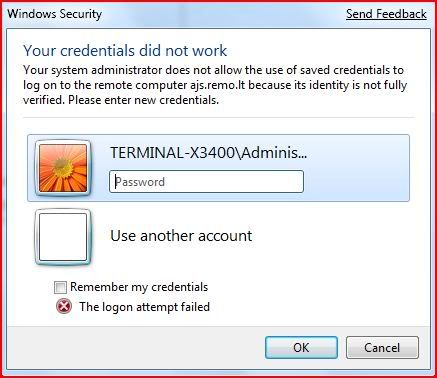
When trying to use saved credentials in Remote Desktop Connection you might receive this message:
Your credentials did not work
Your system administrator does not allow the use of saved credentials to log on to the remote computer terminal.server.com because its identity is not fully verified. Please enter new credentials.
(screenshot)
To be able to use saved credentials in this situation you need to do the following:
1. Open Group Policy Editor via cmd -> gpedit.msc (screenshot)
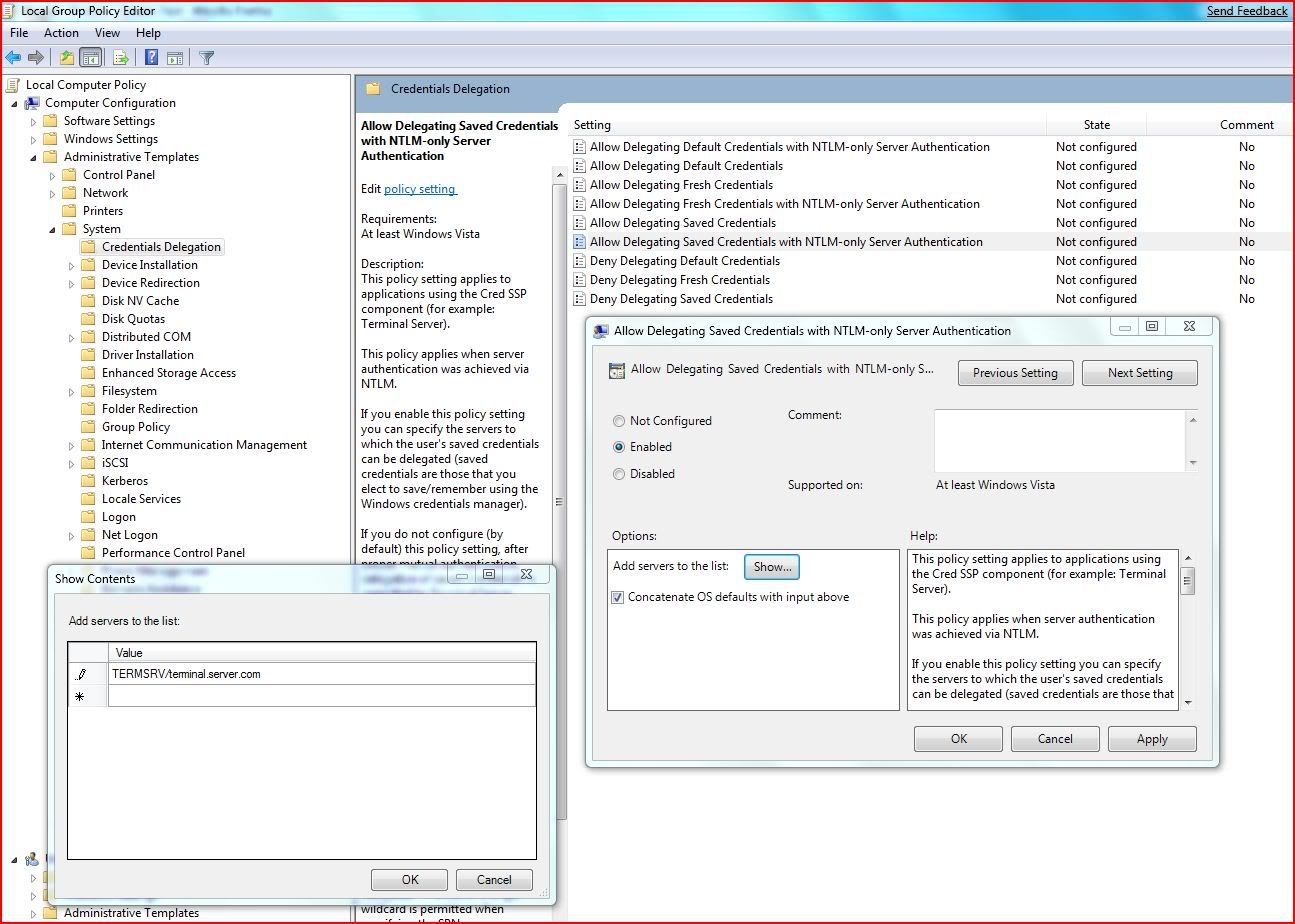
2. Navigate to Local Computer Policy\Computer Configuration\Administrative Templates\System\Credentials Delegation\
3.Open Setting Allow Delegating Saved Credentials with NTLM-only Server Authentication, set it to Enabled click on button Show... and in Show Contents window add Value TERMSRV/terminal.server.com. Close all windows by pressing OK. (screenshot)
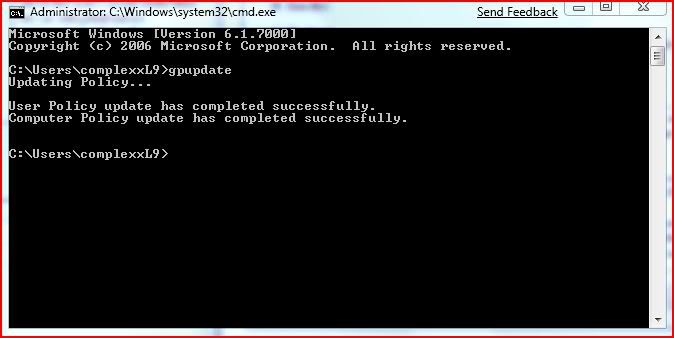
4. Run cmd and enter gpupdate command to update your policy. (screenshot)
Now you should be able to use your saved credentials.
note:
these steps were performed on Windows 7 beta, but probably it will stay the same in final release and my guess is, it is the same in Vista (too lazy to check).
Your credentials did not work
Your system administrator does not allow the use of saved credentials to log on to the remote computer terminal.server.com because its identity is not fully verified. Please enter new credentials.
(screenshot)
To be able to use saved credentials in this situation you need to do the following:
1. Open Group Policy Editor via cmd -> gpedit.msc (screenshot)

2. Navigate to Local Computer Policy\Computer Configuration\Administrative Templates\System\Credentials Delegation\
3.Open Setting Allow Delegating Saved Credentials with NTLM-only Server Authentication, set it to Enabled click on button Show... and in Show Contents window add Value TERMSRV/terminal.server.com. Close all windows by pressing OK. (screenshot)
4. Run cmd and enter gpupdate command to update your policy. (screenshot)
Now you should be able to use your saved credentials.
note:
these steps were performed on Windows 7 beta, but probably it will stay the same in final release and my guess is, it is the same in Vista (too lazy to check).
2008-10-25
Remote Desktop saved Credentials does not work
If you are using Remote Desktop you should be aware that you can save your credentials to be able to connect without entering user name and password each time. But for some reason sometimes it does not work.
You try to connect with you saved credentials and a logon screen pops up with the message at the bottom that "The logon attempt failed". (screenshot)
This is because you entered wrong credentials first time and they were saved, so you need to delete your credentials, enter them again and choose to remember them.
However I was not able to do that, as many times as I tried to delete my credentials and then enter correct ones and save them, when reloging I always got "The logon attempt failed".
So I had to use hostname instead of IP address, when connecting, to be able to save my correct credentials and then successfully relogon without having to enter my password.
Links:
http://blogs.msdn.com/ts/archive/2007/01/22/vista-remote-desktop-connection-authentication-faq.aspx#_Saved_credentials_do
You might want to try this if above information does not solve your problem:
http://alinconstantin.blogspot.com/2007/08/terminal-service-client-not-using-saved.html
You try to connect with you saved credentials and a logon screen pops up with the message at the bottom that "The logon attempt failed". (screenshot)
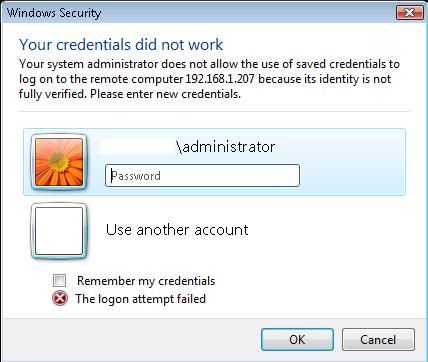
This is because you entered wrong credentials first time and they were saved, so you need to delete your credentials, enter them again and choose to remember them.
However I was not able to do that, as many times as I tried to delete my credentials and then enter correct ones and save them, when reloging I always got "The logon attempt failed".
So I had to use hostname instead of IP address, when connecting, to be able to save my correct credentials and then successfully relogon without having to enter my password.
Links:
http://blogs.msdn.com/ts/archive/2007/01/22/vista-remote-desktop-connection-authentication-faq.aspx#_Saved_credentials_do
You might want to try this if above information does not solve your problem:
http://alinconstantin.blogspot.com/2007/08/terminal-service-client-not-using-saved.html
Subscribe to:
Posts (Atom)