When you have shares for multiple users, each of whom have permissions to different subfolders in that share, you might want to filter the view that the users would only see those contents which they can access.
To achieve this on Windows Server 2003 you'll need to install Access-based Enumeration.
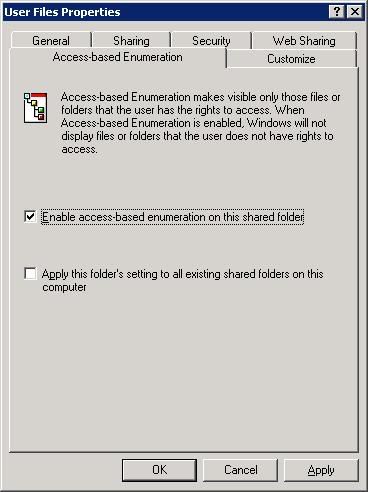
When installed right click on the shared folder, go to the Access-based Enumeration tab and check the Enable access-based enumeration on this shared folder checkbox (screenshot).
Click Ok.
Downloads:
Windows Server 2003 Access-based Enumeration
Documentation
2008-10-28

Shares and subfolders permissions
Task:
Share a folder and make some of its subfolders available to one user group and not available to another user group which also has share permissions on the root folder.
The difficulty in this was that if I share "Folder 1" for "user group 1" with full permissions, then this "user group 1" is able to access all of "Folder 1" subfolders. It is because "Folder 1" inherits the "Security" permissions from it's root (in my case it was "Users (DOMAIN\Users)" with Read & Execute, List Folder Contents and Read permissions on "D:").
You need to remove these inheritable permissions.
To do this:
Right click the shared folder "Folder 1" and click on Properties.
Go to Security tab and click on Advanced button.
Clear the Allow inheritable permissions from the parent to propagate to this object... checkbox (screenshot).
At the prompt click Remove to remove inherited permissions (screenshot) and then specify your own.
Share a folder and make some of its subfolders available to one user group and not available to another user group which also has share permissions on the root folder.
The difficulty in this was that if I share "Folder 1" for "user group 1" with full permissions, then this "user group 1" is able to access all of "Folder 1" subfolders. It is because "Folder 1" inherits the "Security" permissions from it's root (in my case it was "Users (DOMAIN\Users)" with Read & Execute, List Folder Contents and Read permissions on "D:").
You need to remove these inheritable permissions.
To do this:
Right click the shared folder "Folder 1" and click on Properties.
Go to Security tab and click on Advanced button.
Clear the Allow inheritable permissions from the parent to propagate to this object... checkbox (screenshot).

At the prompt click Remove to remove inherited permissions (screenshot) and then specify your own.

2008-10-25
Remote Desktop saved Credentials does not work
If you are using Remote Desktop you should be aware that you can save your credentials to be able to connect without entering user name and password each time. But for some reason sometimes it does not work.
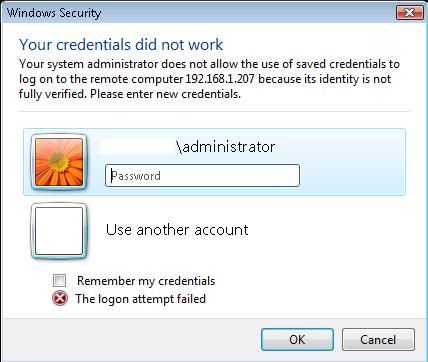
You try to connect with you saved credentials and a logon screen pops up with the message at the bottom that "The logon attempt failed". (screenshot)
This is because you entered wrong credentials first time and they were saved, so you need to delete your credentials, enter them again and choose to remember them.
However I was not able to do that, as many times as I tried to delete my credentials and then enter correct ones and save them, when reloging I always got "The logon attempt failed".
So I had to use hostname instead of IP address, when connecting, to be able to save my correct credentials and then successfully relogon without having to enter my password.
Links:
http://blogs.msdn.com/ts/archive/2007/01/22/vista-remote-desktop-connection-authentication-faq.aspx#_Saved_credentials_do
You might want to try this if above information does not solve your problem:
http://alinconstantin.blogspot.com/2007/08/terminal-service-client-not-using-saved.html
You try to connect with you saved credentials and a logon screen pops up with the message at the bottom that "The logon attempt failed". (screenshot)
This is because you entered wrong credentials first time and they were saved, so you need to delete your credentials, enter them again and choose to remember them.
However I was not able to do that, as many times as I tried to delete my credentials and then enter correct ones and save them, when reloging I always got "The logon attempt failed".
So I had to use hostname instead of IP address, when connecting, to be able to save my correct credentials and then successfully relogon without having to enter my password.
Links:
http://blogs.msdn.com/ts/archive/2007/01/22/vista-remote-desktop-connection-authentication-faq.aspx#_Saved_credentials_do
You might want to try this if above information does not solve your problem:
http://alinconstantin.blogspot.com/2007/08/terminal-service-client-not-using-saved.html
Disk check running everytime Windows starts
Sometimes you might face a situation when disk check is running at computer boot up and it hangs (probably due to HDD problems) and can not complete successfully, so after you restart your computer the disk check is being run again, so you need to manually cancel it every time to be able to boot into Windows.
In this situation you might want to disable auto disk checking at booting.
To disable disk checking every time you turn on your PC:
Open command promt (win+R, type cmd and hit Enter)
enter command
More detailed explanation and causes for this behavior might be found here:
http://www.pcadvisor.co.uk/forums/index.cfm?action=showthread&threadid=231103&forumid=1
In this situation you might want to disable auto disk checking at booting.
To disable disk checking every time you turn on your PC:
Open command promt (win+R, type cmd and hit Enter)
enter command
chkntfs /X C:
(screenshot) where C: is the letter of the disk you're having problem with.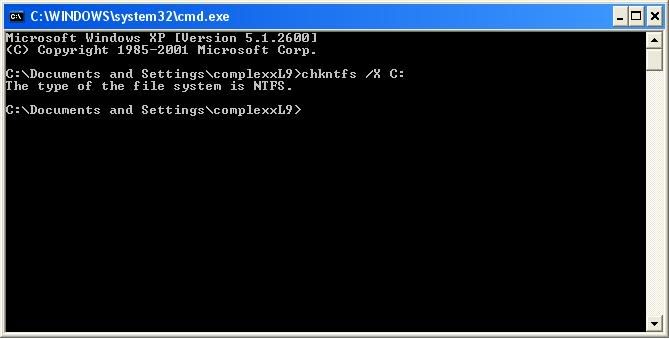
More detailed explanation and causes for this behavior might be found here:
http://www.pcadvisor.co.uk/forums/index.cfm?action=showthread&threadid=231103&forumid=1
OWA login requires "domain\username". How to login wit "username" only?
When logging on to my exchange 2007 server OWA, I need to enter "domain\username", I want to be able to log in by using "username" alone.
So here is how I did that:
Open Exchange Management Console, expand Server Configuration and find Outlook Web Access tab in Client Access. Double click "OWA (Default Web Site)" and go to Authentication tab. Uncheck "Integrated Windows authentication" box (screenshot) and click OK.
Open your webmail and try to log in without specifying a "domain\" in your User Name.
So here is how I did that:
Open Exchange Management Console, expand Server Configuration and find Outlook Web Access tab in Client Access. Double click "OWA (Default Web Site)" and go to Authentication tab. Uncheck "Integrated Windows authentication" box (screenshot) and click OK.

Open your webmail and try to log in without specifying a "domain\" in your User Name.
Subscribe to:
Posts (Atom)